


How to Install Streaming Apps on Google TV in the UK
How to Install Streaming Apps on Google TV in the UK
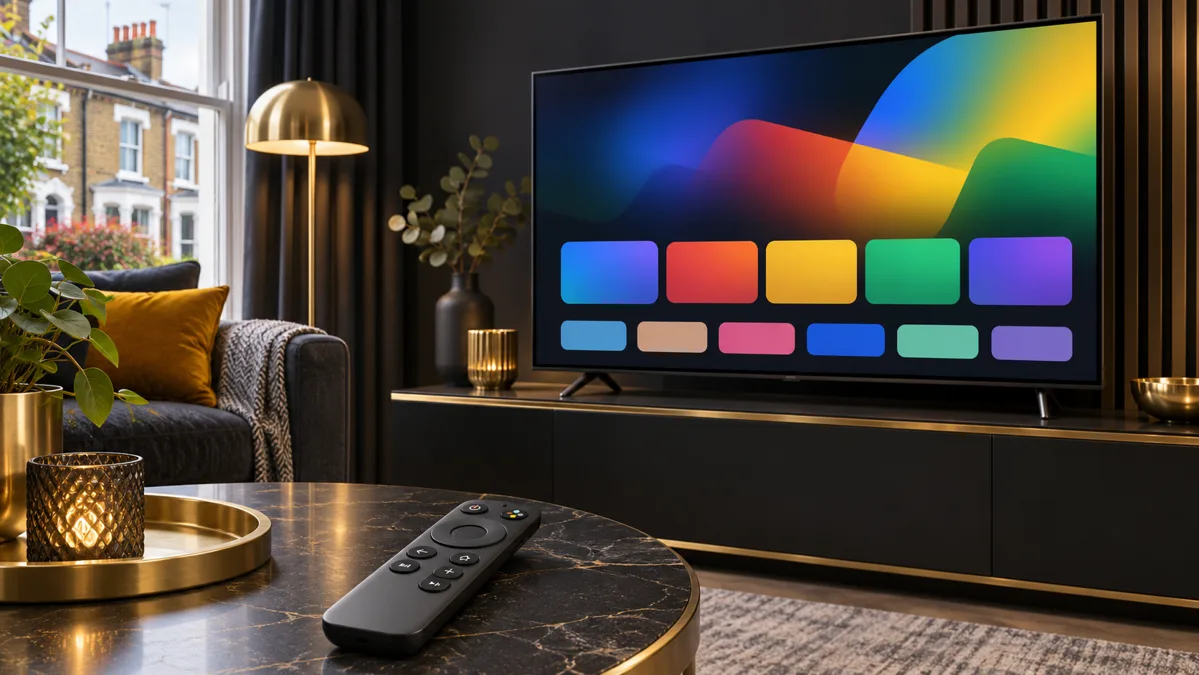
Install streaming apps from the Google TV home screen. If an app doesn’t appear, confirm device support before resetting your TV or buying new hardware.
1. Search from the Google TV home screen
Select Search or use the Assistant button on the remote, then enter the app’s full name. Choose the provider’s app and select Install if it is available. You can also browse the Apps tab. See Google’s app installation instructions.
2. Sign in and test playback
Open the app and follow its sign-in instructions. If the app offers an activation code, use the address shown by the app and confirm you’re signing into the account you intend to use. Try one on-demand programme and, if relevant, a live stream. A successful sign-in alone doesn’t confirm that the feature you want works on your model.
3. Check why an app is missing
Confirm the platform and model
Check your TV’s About menu and use the full model code when checking the provider’s UK device list. If you use a Google TV box plugged into HDMI, search from the box’s home screen. The TV’s built-in app store may be different.
Check the profile and software
If you’re in a child profile, check with the household account holder. Google describes different app availability behaviour for children’s profiles. Check for system updates using Google TV’s update guidance, then search again.
If the provider still doesn’t list your device, use our smart TV compatibility checklist before replacing it. For other devices, see the installation guide by device.